
WhatsApp is one of the most widely used messaging platforms in the world. While most users access it on their smartphones, many people prefer using WhatsApp on their desktop or laptop for convenience and productivity.
Using WhatsApp on a desktop allows you to:
- Type messages faster with a keyboard
- Manage multiple chats easily
- Send files directly from your computer
- Handle customer conversations more efficiently
Fortunately, WhatsApp provides two ways to use the platform on a computer:
Both options allow you to access your chats directly from your PC or laptop.
In this guide, we will walk you through how to download and install WhatsApp on desktop step-by-step.
Ways to Use WhatsApp on Desktop
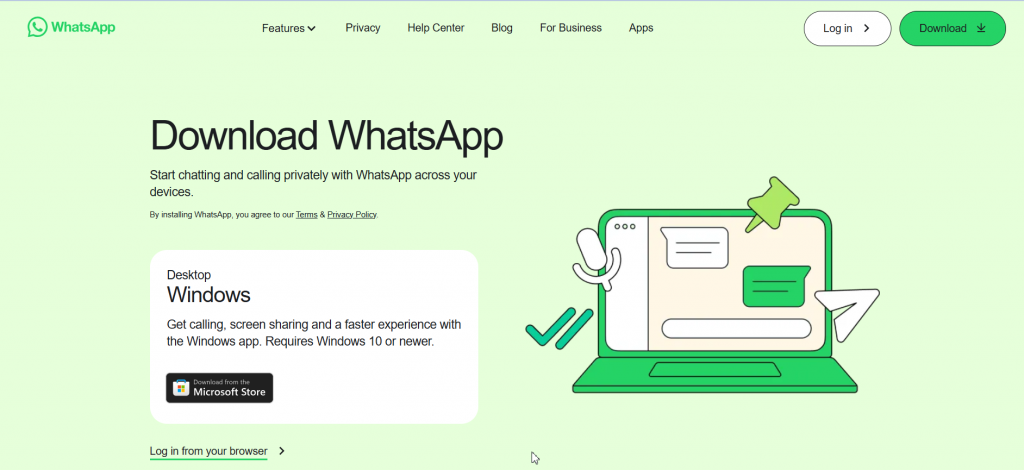
1. WhatsApp Desktop App
This is a dedicated application you install on your computer.
Features:
- Runs as a standalone app
- Desktop notifications
- Faster access without opening a browser
2. WhatsApp Web
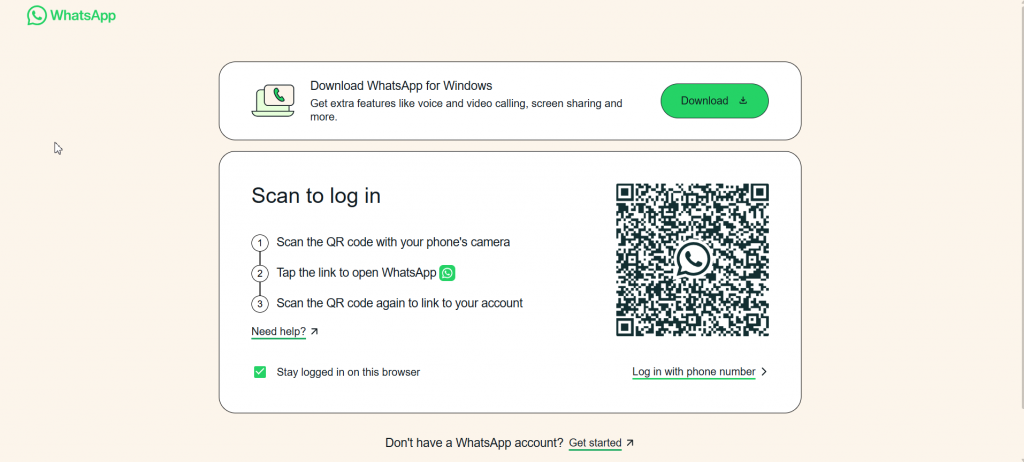
WhatsApp Web works directly in your browser without installing any software.
You simply open web.whatsapp.com and scan a QR code.
Both methods sync your chats from your phone to your computer.
Requirements for WhatsApp Desktop
To install WhatsApp on your computer, you need:
- Windows 10 or later OR macOS 10.10+
- A smartphone with WhatsApp installed
- Active internet connection
- A web browser (for WhatsApp Web)
The desktop version works by syncing with your mobile device.
Step-by-Step Guide
Step 1: Visit the WhatsApp Download Page
Open your browser and go to:
https://www.whatsapp.com/download The website automatically detects your operating system and shows the correct download option.
Step 2: Download WhatsApp Desktop
Choose your operating system:
- Download for Windows
- Download for Mac
Click the Download button and wait for the installer file to download.
Step 3: Install the Application
After downloading:
- Open the downloaded file
- Run the installer
- Follow the on-screen instructions
- Launch the WhatsApp desktop app
Once installed, WhatsApp will open and display a QR code.
Step 4: Link Your Phone to WhatsApp Desktop
To connect your phone:
- Open WhatsApp on your smartphone
- Tap Menu (Android) or Settings (iPhone)
- Select Linked Devices
- Tap Link a Device
- Scan the QR code displayed on your computer
After scanning, your chats will automatically sync with the desktop app.
Step 5: Start Using WhatsApp on Desktop
Once connected, you can:
- Send and receive messages
- Share photos and documents
- Manage group chats
- Use voice notes
Your messages will stay synchronized between your phone and computer.
How to Use WhatsApp Web (Alternative Method)
Steps:
- Open your browser
- Visit web.whatsapp.com
- A QR code will appear
- Open WhatsApp on your phone
- Tap Linked Devices
- Scan the QR code
You can now use WhatsApp directly from your browser.
Benefits of Using WhatsApp on Desktop
Faster Typing
Typing on a keyboard is easier than typing on a smartphone.
Easy File Sharing
You can quickly send files directly from your computer.
Better Productivity
Businesses can manage multiple conversations more efficiently.
Larger Screen Experience Reading long chats and documents is easier on a desktop screen.
WhatsApp Desktop Not Working? Try These Fixes
Check Internet Connection
Both your phone and computer must have internet access.
Update WhatsApp
Make sure you are using the latest version of WhatsApp.
Re-link Your Device
If chats are not syncing, reconnect the device by scanning the QR code again.
FAQ
Can I use WhatsApp on desktop without a phone?
You still need a phone to initially link the device, but once linked, WhatsApp can work independently for some time.
Is WhatsApp desktop free?
Yes. WhatsApp desktop is completely free to download and use.
Can I make calls on WhatsApp desktop?
Yes, the desktop app supports voice and video calls.
Conclusion
Using WhatsApp on desktop is a convenient way to stay connected while working on your computer. Whether you choose the WhatsApp Desktop App or WhatsApp Web, both options allow you to manage conversations more efficiently.
For businesses that handle large volumes of WhatsApp conversations, tools like Go4whatsup can help automate customer communication, manage chats, and improve response time.